Make a new location with scene art
Every road in the Ledger should end somewhere. Here is how a Maker builds the somewhere, and paints the wall behind it.
The quest
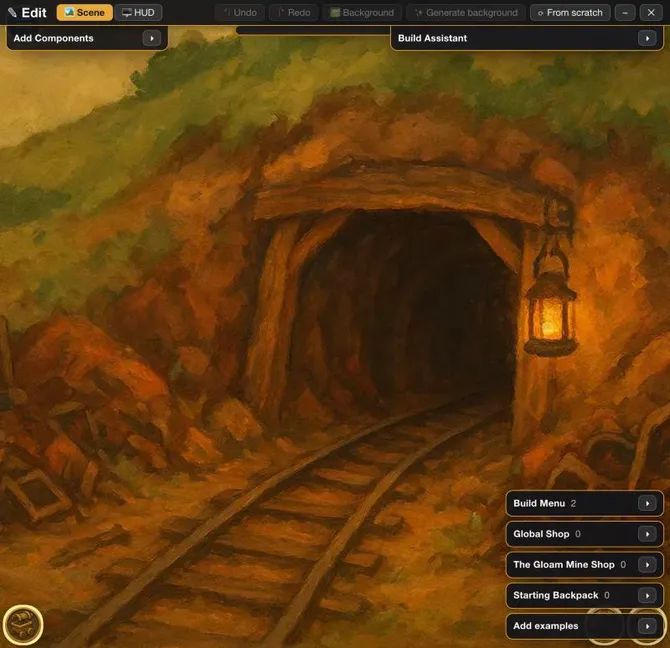
By the end, the Gloam Mine exists as a new location. It has its own painted scene, a signpost leading down to it from the Hollow Road, and a pin on the world map.
You'll need
- A game you can edit, and a place the new one will hang off. In Vespera that is The Hollow Road. See Location.
- A short description of the picture you want.
Steps
-
Play your game and travel to the place the new location will lead from. Open the game menu and click Edit this Game.
-
If the palette is collapsed, open it with the arrow beside Add Components.
-
Drag + Exit from the palette onto the scene. A plain click does nothing. The Add Exit dialog opens.
-
Click NEW PLACE.
-
Type an Exit name, for example "Down into the Gloam Mine". This is the signpost's name.
-
Type a New place name, for example "The Gloam Mine".
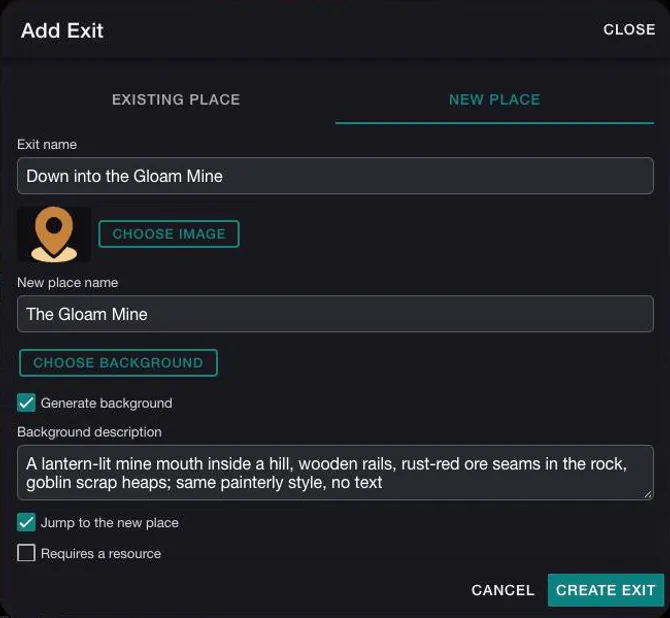
The Add Exit dialog on NEW PLACE. This dialog can also draw the background as it makes the place. -
Leave Jump to the new place ticked, so that Edit Mode takes you there. Leave Requires a resource unticked: a gate comes later.
-
Click CREATE EXIT. If a Heads up box asks whether to continue, click CONTINUE.
-
In the new place, click Generate background in the bar at the top.
-
In the Generate background dialog, replace the text in Background description with what you want to see, for example "A lantern-lit mine mouth inside a hill, wooden rails, rust-red ore seams in the rock, goblin scrap heaps; same painterly style, no text". Click GENERATE.
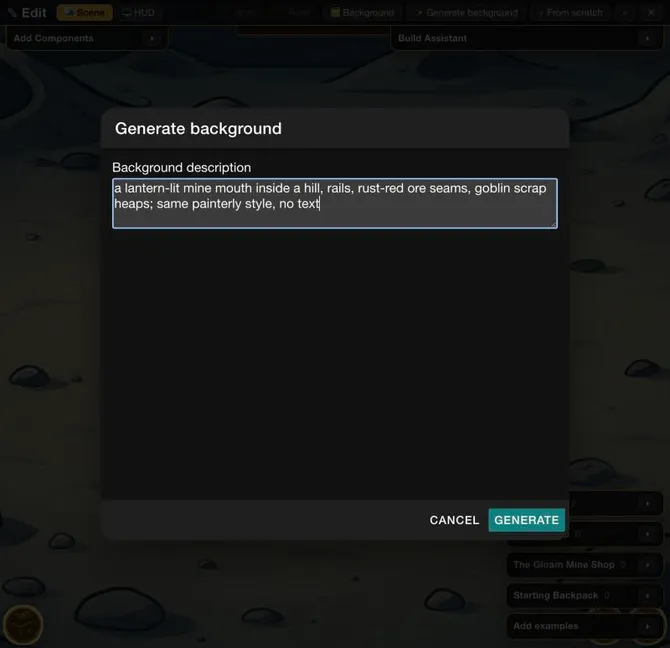
The Generate background dialog. It starts with the place's name in the box. -
Wait about a minute. The dialog shows "Generating image...". If a Heads up box appears, click CONTINUE. The new picture replaces the background.
-
Look at the picture for stray letters. Click ✕ ("Exit edit mode") to leave Edit Mode.
Where the pin is
The new place gets a pin on the current map. It starts in the top-left corner of the map picture, at 0 across and 0 down. Open the map's edit page and drag the pin to where the place belongs. See Map node.
Good to know
If the picture maker cannot draw, Generate background shows an error dialog that reads "Failed to generate image". Ask again later. The dialog in step 6 also has its own Generate background box for drawing the picture as the place is made. The Gloam Mine's picture was drawn with the toolbar button of step 9.
Try it
Edits do not reach a game that is already running, so start a new one: on the home page click Start New Game, pick the Vespera card and click START NEW GAME. Skip the cut-scene and travel to the Hollow Road. The signpost "Down into the Gloam Mine" is there. In Vespera it asks for the research Wayfinder's Lore first. See Paths and travel.
In Edit Mode you can look without that gate. Select the signpost, click the green ↗ above it and click TRAVEL. Edit Mode travel skips costs and rules.
Going further
- Give it a way home. A path goes one way. Make the path back. See Link two locations.
- Fill the scene. Place something in the new place. See Add components to a scene.
- Put the pin where it belongs. Move the node on the map. See Map node.
- Know the scene. A new place gets a scene the size of the game's screen. See The scene model, and for placing things by zone, Placing things in a scene.