Ideas & systems
The HUD
The HUD is the frame the Tailor stitches around the stage: a few counters, a few buttons, always in reach.
What it is
The HUD is the set of counters and buttons drawn over the game, fixed to the edges of the window. It does not move when the scene changes. It is the same in every place.
There are two kinds of thing in it.
- Buttons. Each opens a panel: Menu, Player, Backpack, Shop, Travel, Journal, Characters and Crafting. A turn-based game also offers End turn. A real-time game does not.
- Counters. Each shows how much of one component the player has, or that the place holds. A counter can also show a bar, such as a progress bar. A counter for a component the player does not own yet stays hidden during play.
How it works
You edit the HUD in Edit Mode, on the live game, with nothing to mirror.
- Enter Edit Mode. Open the game menu and choose Edit this Game. The top bar has Scene and HUD. Pick HUD.
- Open the palette. The panel Add to the screen has two tabs, Buttons and Counters. The counters come in four forms: What the player has and What this place has, and a version of each with a text label.
- Drag an entry to an anchor. The eight anchors show as zones while you drag. The first change of a session opens a Heads up box. Choose CONTINUE.
- Order the corner. Items in a corner read in the order you set. Moving one renumbers its neighbours.
- Stack a corner the other way. Each corner has a small toggle on its inner side, shown when you hover it. It turns a row into a column, and back.
- Resize and adjust. Size runs from half to two and a half times the normal icon. A counter's popover also sets its bar.
- Undo. Every drop, move and removal is one step in Undo and Redo at the top. A removed item is only hidden, so Undo brings it back.
The two buttons the game adds for you are not on the palette. If no Menu button was placed anywhere, the game adds a plain round menu button at the top left, even when nothing else is there. A real Menu button replaces it. In a turn-based game the bottom right gets a plain End turn button in the same way. Neither can be edited.
In Vespera
In Vespera: Vespera's HUD Play it
Vespera uses seven of the eight anchors and keeps the bottom centre clear for the scene. That layout is Vespera's choice. The engine does not require it.
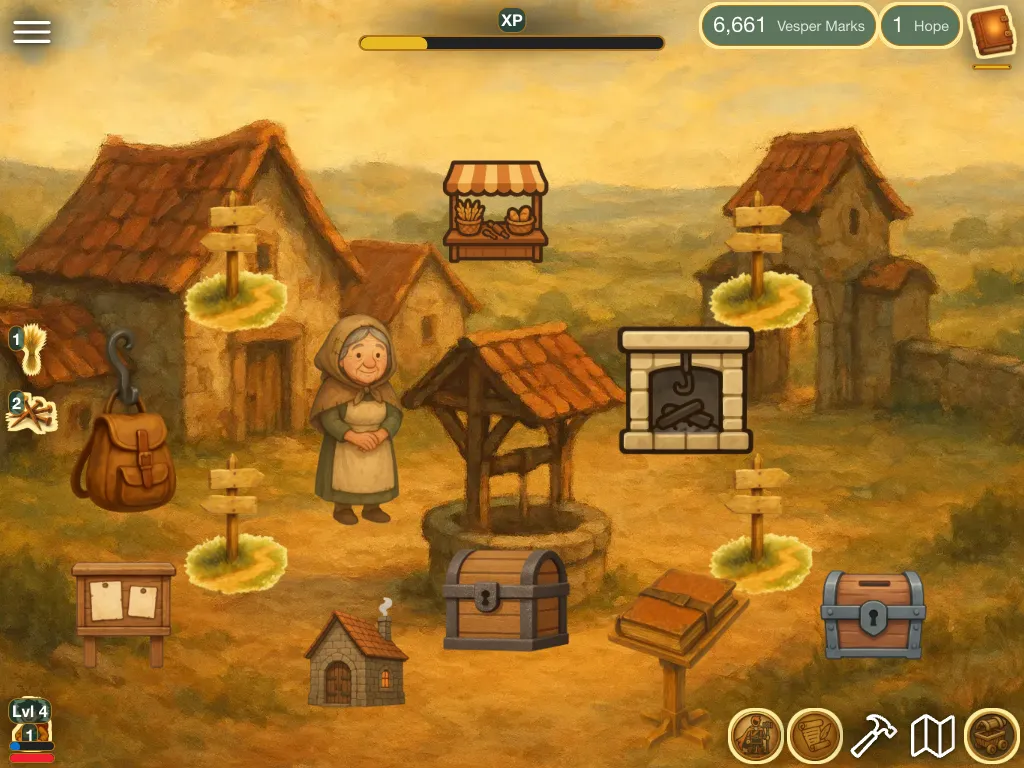
- Menu, top left. A real Menu button with the plain icon. It opens the game menu.
- The experience bar, top centre. It reads Frono's experience.
- Vesper Marks, Hope and the Ledger of Making, top right. The Ledger is a counter for a Tracking item, with a small gold Pages bar. At 1 page of 7 the bar is one seventh full.
- Wheat Sheaf and Iron Nails, middle left. They stack down the side. At the Outpost they show 1 and 2.
- Frono's portrait, bottom left. It shows the level and two bars, experience and health. The portrait's bars are fixed. You do not set them.
- Five buttons, bottom right, in this order: Backpack, Journal, Crafting, Map and Shop.
The middle right holds two counters for what the current place holds, Heirloom Wheat with a Health bar and Iron Ore. They show only where the place has some, so the Outpost's right side is empty. In the Fields, the Heirloom Wheat counter shows 1 with a full red-brown bar.
Counters appear when the player first earns something. Wheat Sheaf and Vesper Marks appear together on the first harvest. Iron Nails appears when the player picks them up. Hope appears after the quest First Light. A counter for a spent item goes away again.
Good to know
- A button needs art, or it gets a plain icon. Counters show the component's own picture.
- Labelled counters draw no bars. The popover offers bar settings for them, but the game does not draw the bar.
Under the hood
- A button with no picture of its own draws a plain icon instead: a cart for Shop, a map for Travel, a book for Journal, a bag for Backpack, a hammer for Crafting, two people for Characters, a menu bars icon for Menu and a person for Player. There is no bundled icon set, so your own art replaces the plain icon.
- A button or counter is drawn at 50 pixels times its size setting, but never larger than a share of the window: 20 percent of the window along the corner's row or column and 25 percent across it. Small phones therefore show smaller icons than a desktop. In Edit Mode the selected item's badge reads that it is capped when this happens.
- Counters and quantities are shortened in play. Numbers below 10,000 show in full with commas. Above that they show three digits and a letter, such as 12.3K or 1.23M.
- A counter for a non-unique item shows the total of all its stacks at the level shown.
- A corner has no limit on how many items it holds. A crowded corner runs off the screen, and Edit Mode warns when a corner holds more than six.
- A bar reads a stat on the thing the counter follows. It does not read the quantity. A meter such as a progress counter is a unique Tracking item with a stat that runs from 0 to a maximum, shown as a bar on its counter.
- A counter for something that should show only on the HUD, with no picture in any scene, is best made from a Token. A Currency or a Material in a place's inventory is also drawn in the scene.