Ideas & systems
How the game screen is put together
A screen is a stage with a frame around it. The scene is the stage, the HUD is the frame, and the panels slide in over both.
What it is
The game screen has three layers. You build each layer in a different place.
- The scene. The picture of the place the player is standing in, with the components you placed on it. It changes when the player travels. See Placing things in a scene.
- The HUD. The counters and buttons that sit around the edges. It is the same in every place. The HUD is the game's permanent frame.
- The panels. The menus that slide in when something opens them: the Shop, the Backpack, the Journal, the map. A panel has tabs, and each tab lists things the player can use.
Colours belong to the whole screen. One theme paints every panel, card and button. You never colour a single button on its own.
How it works
- The HUD is set once for the whole game. It has eight anchors: top left, top centre, top right, middle left, middle right, bottom left, bottom centre and bottom right. Each holds a row or a column of buttons and counters.
- A scene button is the other way in. You can also place a menu button in a scene, like any component. It has its own spot on the scene and shows only in that place.
- Both open the same panels. A HUD button is always there and always works. A scene button can ask for something first, for example a requirement, before its panel opens.
- Counters follow the player. A counter shows a quantity. It stays out of sight at 0 during play, and appears the first time the player has some. In Edit Mode it shows faded in its real spot, so you can still place it.
- The theme and the switches are separate from the buttons. The theme sets colours. The switches decide which tabs a panel shows.
Use the HUD for the things a player needs everywhere, such as a score or a backpack. Use scene buttons for things that belong to a spot in the world, such as a stall.
In Vespera
In Vespera: The Last Outpost Play it
Vespera has both kinds of button. The Shop button is in the HUD, bottom right. Maren's Stall is a scene button in the Last Outpost. They open the same panel, with the tabs Build, Buy and Sell.
The same twins exist for the others. The Backpack button and the Pack Hook both open the Backpack panel, tabs Inventory, Crafting, Skills and Stats. The Journal button and the Quest Board both open the Journal panel, tabs Quests, Research, Achievements, Collection and Story.
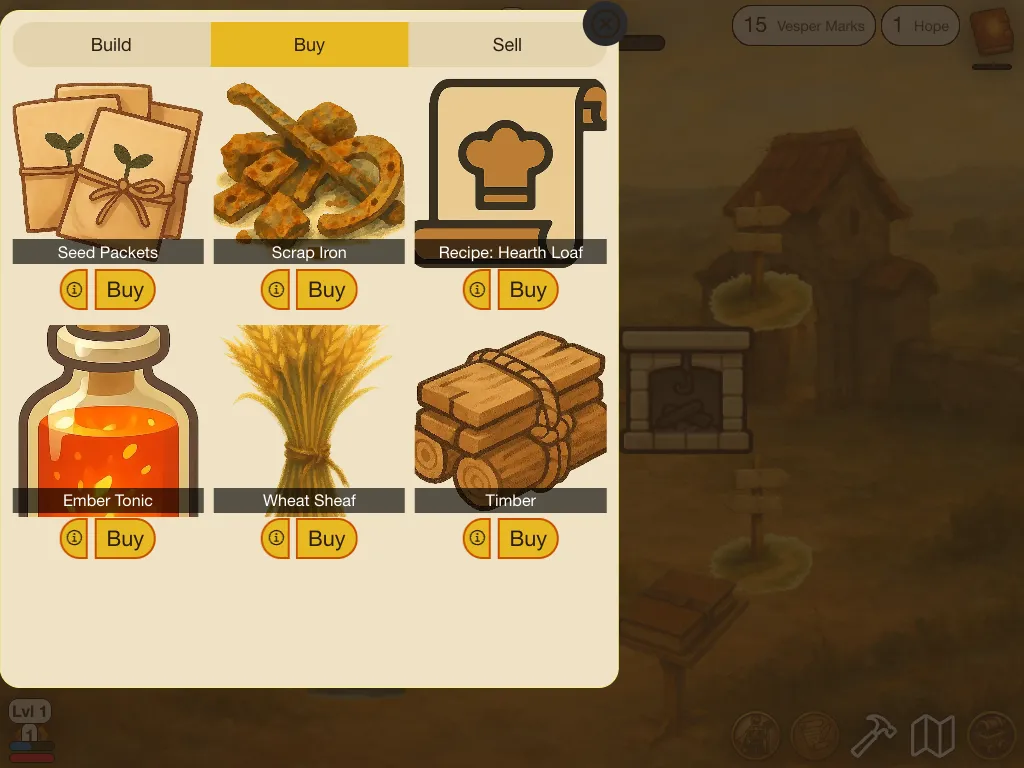
Vespera keeps the engine's default look, dark teal panels with white text. It tried parchment and ink with gold, and the picture above was taken then. The engine only gives you the places to set a theme.
Good to know
- A designer sees a different bottom row. A visitor who cannot edit the game sees a small "Create your own game" link at the bottom left, and the bottom row sits a little higher to make room. Editors never see it, so Edit Mode shows the row lower than a visitor's.
- A HUD button always works. It has no requirements. If a panel should be gated, use a scene button.
- No switch for some panels. The map and the character roster always show their full panel when opened.
Under the hood
- Everything on this page is stored on the game, not on a place. A game has one HUD, one theme, one font and one set of menu switches.
- The order of buttons within a corner is kept as a number on each button. Two buttons can share a number, and then the game falls back to the order they were made in.
- A game can also set its own mouse cursors (an arrow, a pointer and a pan hand). They are small PNG pictures, each side at most 128 pixels, and they are set in the full theme editor, not in Edit Mode.
- Each game stores its own screen size for the scene. The HUD does not use it: the HUD is fixed to the edges of the window, not to the scene.