Re-colour your game
The Tailor keeps a box of dyes. A swatch is a dye, and one drop turns the whole cloth.
The quest
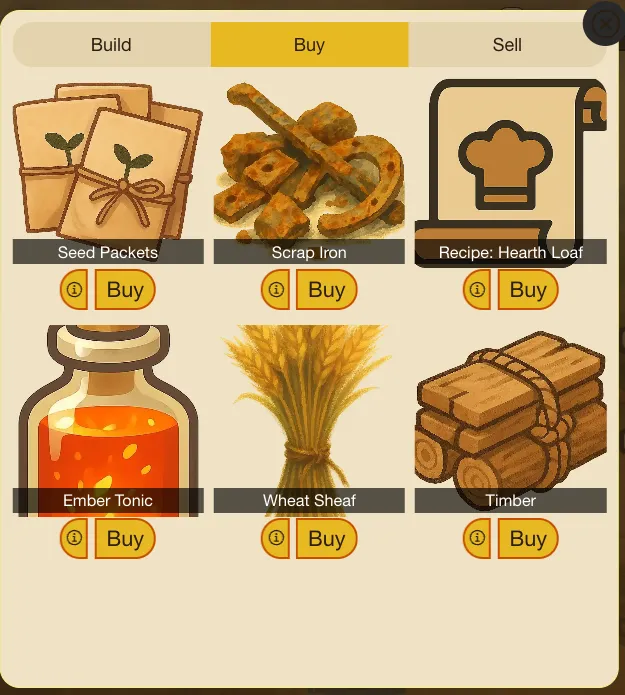
By the end, a game's panels, cards and buttons wear a new set of colours of your choosing. Vespera's designer tried parchment cream and ink, then kept the default look. Before, the panels were dark teal, the game's default.
You'll need
- Edit Mode open on your game. See The HUD.
- A few colours in mind, as hex codes such as #F3E9D2. The editor's defaults are in Theme colours.
Steps
-
Play your game, open the game menu and click Edit this Game. Pick HUD.
-
In the header of Add to the screen, click the palette button titled Look & feel. The panel has two tabs, Colours and Menus.
-
On Colours, find a group: Panels & cards, Menus & popups, Buttons, Tabs or Screen labels. Each holds swatches, 19 in all.
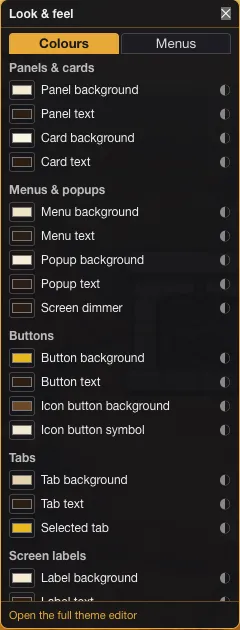
The Colours tab of Look & feel, with every swatch filled, as in Vespera's parchment trial. -
Click a swatch, such as Panel background. Your computer's own colour picker opens. Choose a colour, such as #F3E9D2.
-
If a Heads up box appears, click CONTINUE. It comes up on the first change of a session.
-
Look at the game. It changes at once. Open a panel to see it.
-
Wait about 10 seconds. Then pick the next swatch, such as Panel text. Repeat for each colour you want to change.
-
Pick Screen dimmer last. The small ◐ beside it means it keeps its see-through amount, if it had one.
-
Look at the Font row. It reads "The game's default". Choose… opens the Media Library on its Font list. Vespera kept the default.
-
For borders, and for the dimmer's see-through amount, use the full theme editor. The link Open the full theme editor at the foot of the panel currently reloads the app and drops your organisation, so go there from the admin pages instead: open your game's admin pages and choose UI in the side menu. Scroll down the page to the section Customize Interface Colors. A border has a box for its style and width, and a colour control.
-
In the full editor, click Save Variables. Discard Changes drops the edits.
Give each colour a moment
Each change saves the game and refreshes it. A change made within a few seconds of the last one can be lost. Wait about 10 seconds between colours, and check that a swatch took before you move on.
The dimmer may start solid
A picked colour keeps the see-through amount of the one it replaces. If the dimmer ends up solid, set its Opacity in the full theme editor. The parchment trial used 80 percent.
Try it
Close Edit Mode and play. Open the Shop, the Journal and the Backpack. The panels, tabs and buttons wear your colours, and the scene behind a panel is dimmed. If a panel is hard to read, change its text colour.
Going further
-
Go back. In the same Edit Mode session, Undo takes back each colour change, one step at a time. Once you have left Edit Mode there is no reset button: set the colours back by hand from the Editor default column of Theme colours. In the full theme editor, Discard Changes drops only edits you have not saved, and Save Variables always writes the whole list.
-
See every setting. Theme colours lists all of them, with the editor's default for each.
-
Choose which menus the player gets. The Menus tab of the same panel. See Which menus the player sees.
-
Move the buttons. See Move the HUD buttons.