Fade in an image and zoom it
The old map was grey and still. Here is how the Ledger lets the true one bloom over it.
The quest
By the end, a restored map fades in over a withered one, from 8 to 12 seconds, and zooms slowly from 1 to 1.15 times its size until the story ends at 20 seconds. This is how Waystone Memory in Vespera is built.
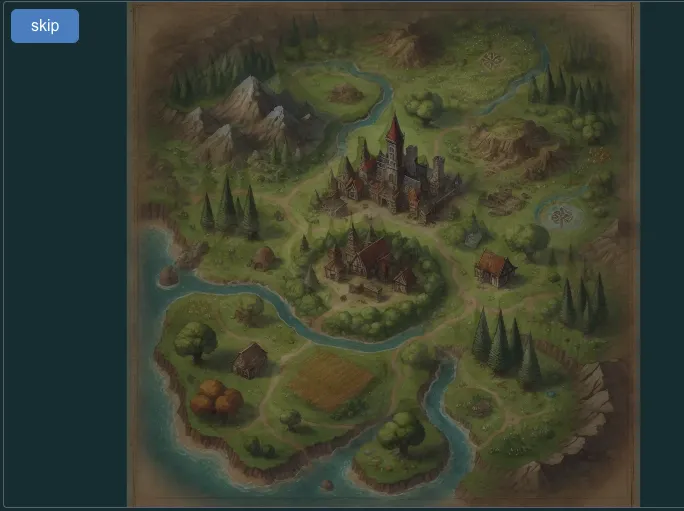
You'll need
- A story with a picture already on its timeline, here the withered map from 0 to 12 seconds. See Story sequences.
- The picture to fade in, already in the game's Media Library. See Image layers.
Steps
-
In the admin pages, click Story Sequences in the left bar, click the story's name, then click Edit Sequence Timeline. In Vespera that is Waystone Memory.
-
Click ADD IMAGE. In the Media Library, double-click the picture, then click CONFIRM IMAGE. The new layer is 0 to 5 seconds long.
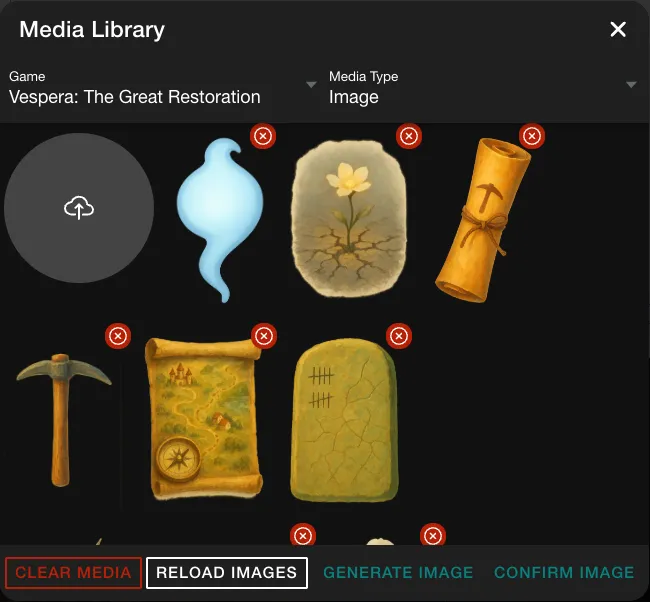
The Media Library. The tiles have no names. -
Click the new layer's bar. On the INITIAL STATE tab, set End Time (ms) to 20000, then Start Time (ms) to 8000.
-
Set Height (%) to 100 so that the map fills the stage, and Opacity to 0 so that it starts invisible.
-
Open the ANIMATIONS tab. Under Property Animations, click Opacity, then ADD ANIMATION. This makes a keyframe at time 0 with the value 0.
-
Click on the Opacity track line at 4 seconds. In the dialog, set Time (ms) to 4000 and Value to 1, then click CONFIRM.
-
Click Scale, then ADD ANIMATION. Click on the Scale track line near 12 seconds, set Time (ms) to 12000 and Value to 1.15, then click CONFIRM.
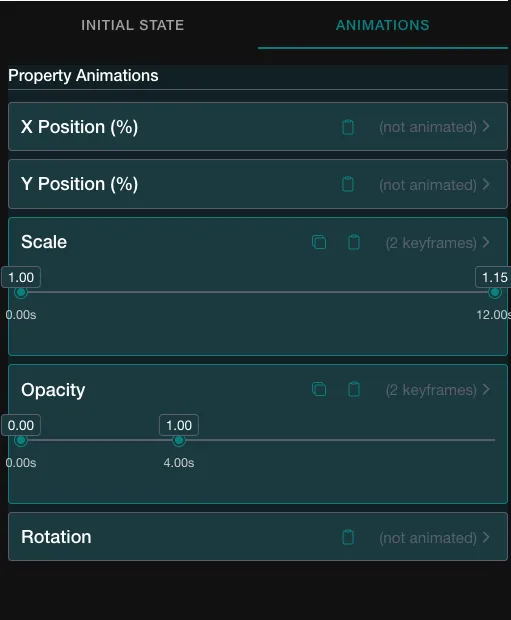
The two tracks of the restored map. -
Click SAVE. No message appears.
-
Under the timeline, click the play button. The preview plays the story, and the clock under the timeline reads Current Time. The timeline reads Content Duration: 20.0s.
Good to know
Keyframe times count from the layer's own start. The layer starts at 8 seconds, so the 4-second keyframe lands at 12 seconds on the story's clock. A new layer is 0 to 5 seconds long, so set End Time (ms) before Start Time (ms).
Good to know
The easing on a keyframe shapes the stretch that arrives at it, in the editor preview and in the game alike. In Vespera the opacity keyframe at 12 seconds is set to ease-in-out, so the fade starts slowly, runs quickly through the middle and settles: in play the restored map read 0.14 at 9 seconds, 0.49 at 10 and 0.87 at 11. An even fade would read 0.25, 0.5 and 0.75.
Try it
Play the story in the game. In Vespera, touch the standing stone on the Hollow Road. Later, open the Journal, pick the Story tab, choose Waystone Memory and press Play. The withered map fades out as the restored one fades in. Both read 0.5 at 10 seconds. At 12 seconds the restored map is fully solid and its scale is about 1.07, rising toward 1.15 at 20 seconds. Two captions wait for Continue above the maps. See Text layers.
Going further
- Fade the first picture out. Give the withered map an Opacity keyframe at 8 seconds with value 1 and one at 12 seconds with value 0. That is how Waystone Memory crosses over. Vespera Remembers does it too: its withered map fades out and its restored map fades in between 4 and 12 seconds, with ease-in-out. See Animation.
- Put a sound under it. Add a horn at 8 seconds, as Waystone Memory does. See Audio tracks. Or let petals fall over the restored map, as Vespera Remembers does. See Particle layers.
- Keep the words on top. A caption needs a higher layer order than the maps. See Image layers.