Layer types
Animation
A still picture is a held breath. Give it two moments and the Ledger fills in everything between.
What it is
Animation changes one property of a layer over time. You set its value at two or more moments, called keyframes, and the story fills in the values between them. Each property has its own track.
What it can do
- Slide a layer: X Position (%) and Y Position (%).
- Zoom a layer in or out: Scale, where 1 is natural size.
- Fade a layer in or out: Opacity, from 0 to 1.
- Turn a layer: Rotation, in degrees.
- Combine tracks on one layer, such as a fade and a slow zoom together.
Adding one
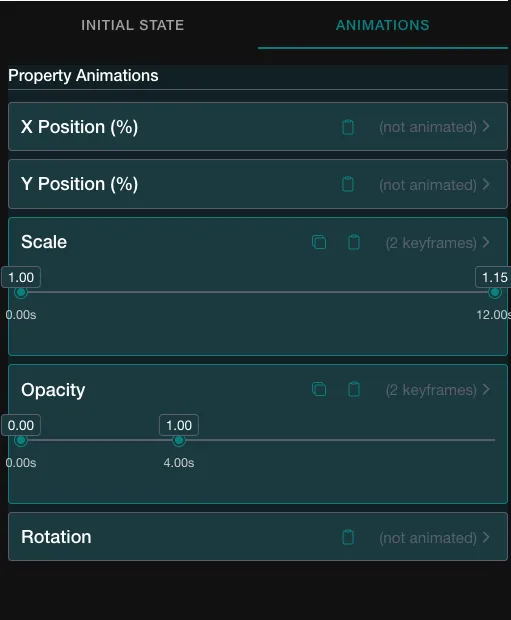
- In the timeline editor, click the layer's bar, then open the ANIMATIONS tab.
- Under Property Animations, click the property you want. Each opens to an ADD ANIMATION button, which makes the first keyframe at time 0 from the layer's resting value.
- To add another keyframe, click on the property's track line at the time you want. The time is rounded to 10 ms. A dialog titled "Keyframe at" and the time opens.
- Set Time (ms) and Value, choose an Easing, and click CONFIRM. CANCEL closes it with no change.
- To change a keyframe, click its marker. The first keyframe's time is locked at 0.
- Click SAVE when you are done.
Settings
| Field | What it means | Example |
|---|---|---|
| Time (ms) | When the keyframe happens, counted from the layer's own start | 4000 |
| Value | The property's value then | 1 |
| Easing | How the change runs on the way into this keyframe, from the one before it. The options are linear, ease, ease-in, ease-out and ease-in-out | linear |
In Vespera: The restored map in Waystone Memory Play it
The restored map starts at 8 seconds and ends at 20, so its keyframe times count from 8. It has two tracks. Opacity goes from 0 at time 0 to 1 at 4 seconds, which is a fade in from 8 to 12 seconds on the story's clock. Scale goes from 1 at time 0 to 1.15 at 12 seconds, which is a slow zoom from 8 to 20 seconds.
The withered map is the other half of the cross-fade. Its Opacity holds at 1 until 8 seconds, then goes to 0 at 12.
In play, the withered map went from 1 to 0 and the restored map from 0 to 1 across 8 to 12 seconds, and both read 0.5 at 10 seconds. The restored map's scale was about 1.07 at 12 seconds and reached 1.15 at 20 seconds. On a later replay the fade read 0.14 at 9 seconds, 0.49 at 10 and 0.87 at 11: ease-in-out, not an even fade.
The restored map in The Wayfinders' Oath shows the direction of easing. It fades in from 3 to 8 seconds, and its end keyframe is set to ease-in-out. That setting shapes the stretch arriving at that keyframe: slow at the start, quick in the middle, slow at the end. In play the restored map read 0.72 at 6.17 seconds and 0.91 at 6.93 seconds. A linear fade would have read 0.63 and 0.79.
Two more examples play the same way. In The Bard's Tale the mural pans sideways: its X Position (%) keyframe runs to -20 at 25 seconds, set to ease-in-out. On a replay in the game the mural's left edge sat 194 px to the left at 5 seconds and 361 px at 20 seconds. In Vespera Remembers the restored map fades in from 4 to 12 seconds with ease-in-out on its end keyframe. On play it read 0.14 at 6 seconds, 0.52 at 8 and 0.88 at 10, slow, quick, then slow: an ease-in-out curve.
Good to know
- Easing shapes the way in. The easing you set on a keyframe shapes the stretch that ends at that keyframe. To ease a move into place, set it on the destination keyframe. The first keyframe has nothing before it, so its easing does nothing. The editor preview and the game play it the same way.
- Counted from the layer. Keyframe times start at the layer's own start, not at the start of the story.
- Keep the layer long enough. A keyframe after the layer's end is cut off. Move the layer's End Time (ms) later instead.
Under the hood
- Each animated property is a separate track of moments. A track you do not use keeps the layer's resting value for the whole layer.
- The last moment's value is held until the layer ends, so you do not need a closing moment at the layer's end.
- A moment placed after the layer's end is cut off, and the motion is truncated, not stretched. Give the layer a later end instead.
- Scale and rotation share one transform. If you animate both, set their moments at the same times.
- Position moments are offsets from the layer's anchor. For right and bottom anchors a positive number moves the layer off the screen, so use a negative one to move it inward.