Reference
HUD anchors
Eight pegs along the edge of the stage. Hang something on one and it stays put.
What it is
An anchor is a place on the game screen where HUD buttons and counters are pinned. There are eight: three along the top, one on each side in the middle, and three along the bottom. Items in an anchor stay fixed to that edge of the window when the scene changes.
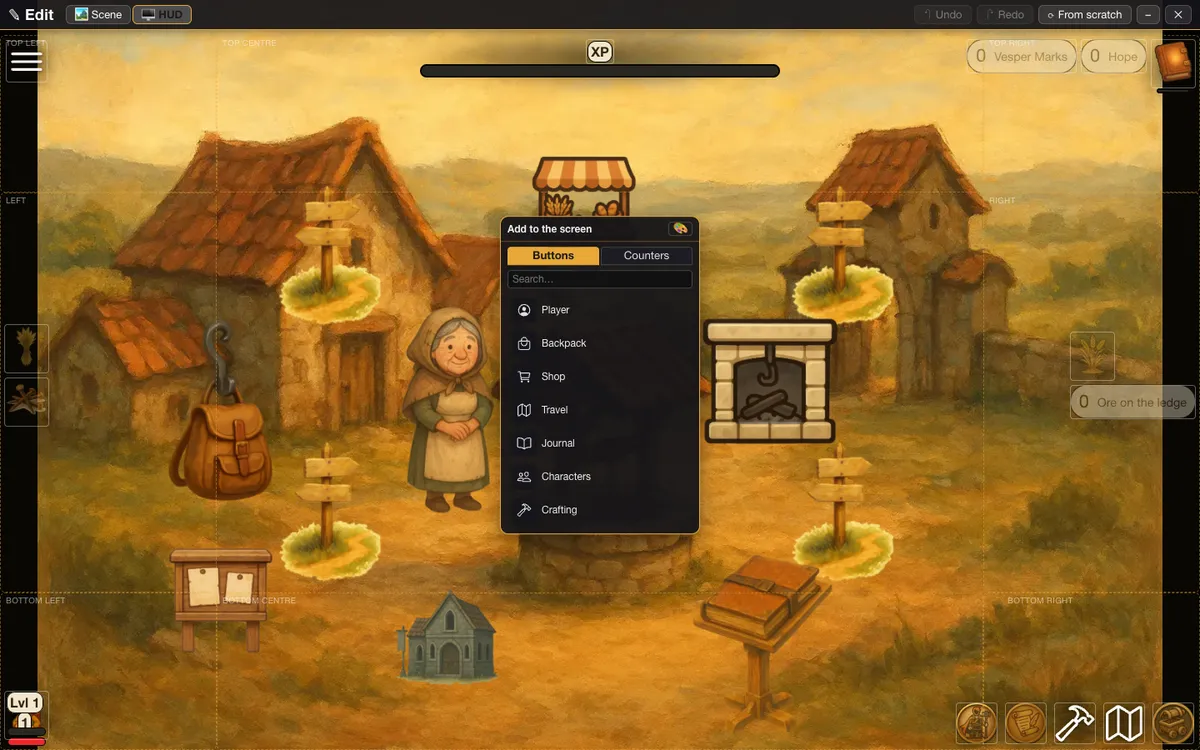
Edit Mode labels the eight zones when you open the palette.
| Zone label | Where it is |
|---|---|
| Top left | The top left corner |
| Top centre | The middle of the top edge |
| Top right | The top right corner |
| Left | The middle of the left edge |
| Right | The middle of the right edge |
| Bottom left | The bottom left corner |
| Bottom centre | The middle of the bottom edge |
| Bottom right | The bottom right corner |
Settings
An anchor has two settings. You set them by dragging items and with a small toggle.
| Setting | What it means | Example |
|---|---|---|
| Order | Items in an anchor read in the order you set. Moving one renumbers its neighbours. | The Backpack button first |
| Stacking | A row of items across, or a column of items down. A small toggle on the anchor's inner side flips it. It shows when you hover it. | The left and right anchors stack down |
Setting it up
- Open the game menu and choose Edit this Game. Pick HUD.
- In Add to the screen, open the Buttons or Counters tab and drag an entry. The eight zones show while you drag, and each empty one says Drop here.
- Drop it on a zone. If a Heads up box appears, choose CONTINUE.
- Drag an item inside its anchor to change its order.
- Hover the anchor and use its small toggle to stack it the other way.
The palette sits over the top part of the screen. While it is open, the three top anchors move down so it does not cover them.
In Vespera
In Vespera: Vespera's anchors Play it
Vespera uses seven of the eight anchors. The bottom centre stays empty, so the scene shows there. This is Vespera's choice, not the engine's.
| Anchor | What Vespera keeps there |
|---|---|
| Top left | The Menu button |
| Top centre | The experience bar |
| Top right | Vesper Marks, Hope and the Ledger of Making |
| Left | Wheat Sheaf and Iron Nails, stacked down |
| Right | Heirloom Wheat and Ore on the ledge, stacked down. The ore shows only where the place holds some. |
| Bottom left | Frono's portrait |
| Bottom centre | Nothing |
| Bottom right | Five buttons: Backpack, Journal, Crafting, Map and Shop |
Good to know
- An empty anchor still counts. If no Menu button is placed anywhere, the game adds a plain one at the top left, even when nothing else is there. In a turn-based game it also adds a plain End turn button at the bottom right.
- Crowded anchors overflow. Edit Mode warns when an anchor holds more than six items. Keep small screens in mind.
- The zone names above are what Edit Mode shows. The sides in the middle read Left and Right.
Under the hood
- Each anchor can hold any number of items. A crowded anchor runs off the screen, and Edit Mode warns when one holds more than six.
- An item is drawn at 50 pixels times its size setting, and no larger than a share of the window along the anchor's row or column and across it. Small phones therefore show smaller icons than a desktop.
- In a game you are playing, a player who cannot edit the game may see a small link to create their own game in a strip below the bottom left anchor. The whole bottom row lifts by that strip while it shows. It never covers your items, and it is absent in Edit Mode and for editors.