Reference
Labelled player counter
Some things are better written than drawn. The Tailor stitches them in as a line of text.
What it is
A labelled player counter shows a number and a word for one component the player owns. It has no picture. In Edit Mode its palette name is What the player has, with a label. You make it by setting an ordinary player counter to A label.
Settings
| Setting | What it means | Example |
|---|---|---|
| Component | The thing counted. | Vesper Marks |
| Label | The words shown beside the number. | Vesper Marks |
| Corner | The anchor and the order in it. | Top right, first |
Setting it up
- Open the game menu and choose Edit this Game. Pick HUD.
- In Add to the screen, open Counters and drag the component onto an anchor.
- Select the new counter. In its popover, next to Shows, choose A label.
- Type the words in Label. They save when you leave the box or press Enter.
In Vespera
In Vespera: Vesper Marks and Hope Play it
Vesper Marks and Hope are labelled counters at the top right. Their labels are "Vesper Marks" and "Hope".
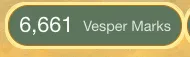
Numbers below 10,000 show in full, so the player sees 6,661. Above 10,000 a number shows three digits and a letter. See The HUD.
Using text for these two is Vespera's choice. The engine lets any counter take either form.
Good to know
- It draws no bars. The popover offers bar settings, but nothing shows. Use the picture form when you want a bar.
- It stays hidden until the player holds one. A new game shows no label until the first is earned. Edit Mode shows it faded.
Under the hood
- The label starts as the component's name when you pick it. You can change it.
- The text uses the theme's HUD label colours.
- There is no size setting for a labelled counter. Its size comes from its text, and the icon size cap does not apply to it.
- The popover offers bar settings for a labelled counter, but the game does not draw them.
- Tapping it opens the same item card as the picture form.