Give a character an attack
A Restorer who cannot fight is only a very polite target. Here is how to write Frono his first blow.
The quest
By the end, the player's character has a move named Ledger Strike that takes 6 Health from the foe, and it shows in the fight panel when the player fights the Hollow Wisp.
You'll need
- A game you can edit.
- A character the player plays, such as Frono. See Character.
- A foe with an Attack action, placed in a scene, such as the Hollow Wisp.
- The foe needs the stat the move changes. The Hollow Wisp has 15 Health.
Steps
-
Play your game, open the game menu and click Edit this Game.
-
In the Add Components panel, click the link Edit the player's character. A window opens with the name of the character's first level, Restorer, and "Level 1 of 5".
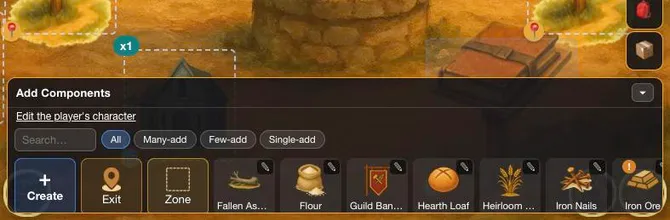
The link Edit the player's character. -
If the Stats & capabilities card covers the list of actions, click its heading to fold it.
-
Click Add action and choose Give it a fight move. (The other choice, Let this make something, adds an action that makes things.)
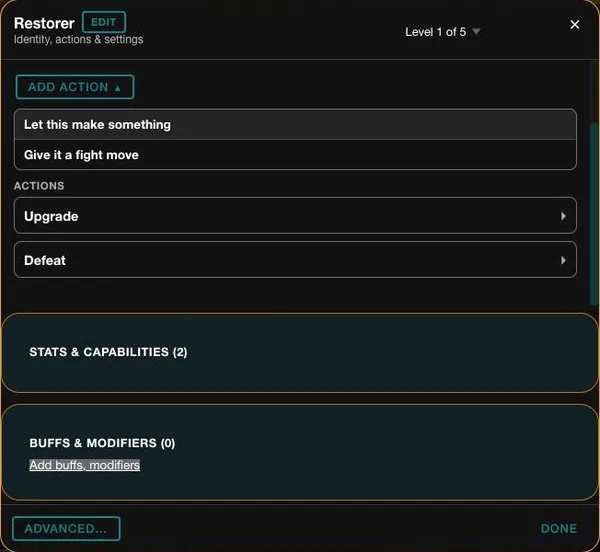
The Add action menu. -
The Heads up dialog says that editing the game updates its config and refreshes your current game. Click Continue. A message says Added "Strike".
-
The new action opens with the field Button label set to Strike. Type the name the player will see, Ledger Strike.
-
Under Effects, an empty move says "A move does nothing until you add an effect." Click Add target effect.
-
A sentence appears: "The thing this action is used on has". Click Pick a stat or capability. and choose Health under Stats.
-
Leave Subtract chosen and type 6 in the amount box. The line reads "The thing this action is used on has Health decreased by 6."
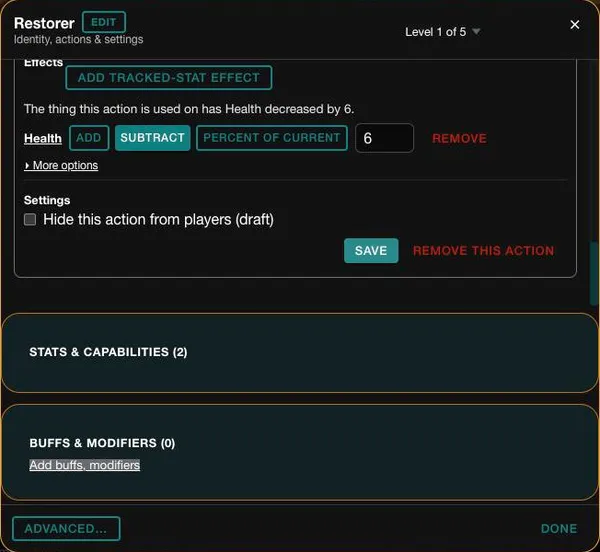
The finished move, ready to Save. -
Click Save. A message confirms the save.
Good to know
The Heads up dialog is the game warning you that saving refreshes your current game, so item counts and some stats may reset. Keep that in mind if you are testing from a game you care about.
Try it
Play your game and go to the foe. Tap it and choose Attack. The fight panel opens with your move under the foe's name.
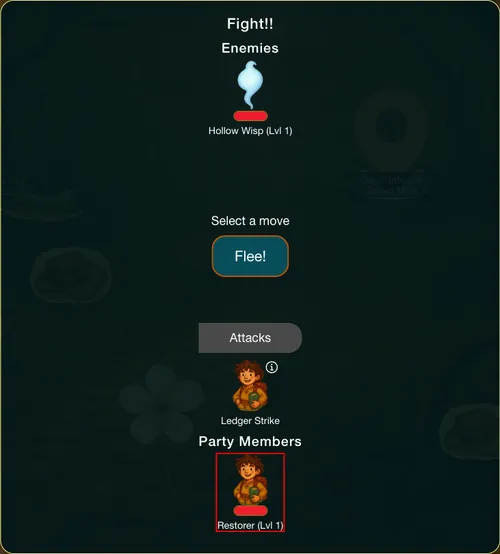
Tap Ledger Strike, then Attack!. The panel writes a line such as "Restorer uses Ledger Strike on Hollow Wisp for -6 health", and then the foe's own move.
Going further
- Give the move to a weapon. Select a Gear item, such as the Nail-Studded Club, and add a fight move the same way. See Gear.
- Write what the foe leaves behind. See Enemy defeated.
- Write what happens when the player falls. See Player defeated.