Ideas & systems
The property window
Every component in the Ledger has a page of its own. The property window is where a Maker writes on it.
What it is
The property window is the window in Edit Mode that edits one component. Open it from the game menu with Edit this Game, click a component, then press Edit. It has a header with the component's name and its level, a list of its actions, and below them two sections about the component itself.
- Stats & capabilities. The named numbers and abilities the component carries, such as Health or Reaping. See Stats and tags.
- Buffs & modifiers. Boosts the component gives the player, such as one more Wheat Sheaf each time wheat is awarded. See Buffs and modifiers.
Each action in the list can be opened. It then shows its own ingredients or price, requirements, effects, rewards and settings. The pages on Needs a tool, Gives and the other requirements and effects describe those rows.
How it works
- Open it and make a first edit. The first edit of a session shows a Heads up box. It says editing refreshes your current game. Choose CONTINUE.
- Scroll to the two sections. They sit under the actions and apply to the selected level. Each starts as a collapsed link, Add stats, attributes, capabilities and Add buffs, modifiers. A section that already has rows shows their count, such as (2); click it to open the rows.
- Add a stat or capability. A search box offers the stats the game already has and a "New stat" or "New capability" entry. A new Health starts at 100 of 100, a new XP at 0 of 100, a capability at 1, and any other stat at 0 of 100.
- Type a value and a maximum. They save when you leave the field or press Enter. The window refuses a number that is not whole, a maximum of 0 or less, a value below 0 and a value above its maximum. The refused text stays on screen so you can fix it.
- Use the row buttons. Change on this level gives this level its own value. Use Level n's value returns to the level before. Remove deletes the row.
- Add a buff. The builder reads Add a buff: then a choice, More or Better chance of, then a target, an amount and Add. A line reads the buff back, such as "+20 Gold every time Gold is awarded". The note Works while the player carries this sits under the heading.
- Undo. Every change is an undoable step.
Only a unique item can hold stats. For any other component the section says "Only unique items have stats and attributes." A note on the section also says that saving resets the stats of copies already placed in the world. Copies the player has already picked up keep theirs.
In Vespera
In Vespera: The Rusty Sickle Play it
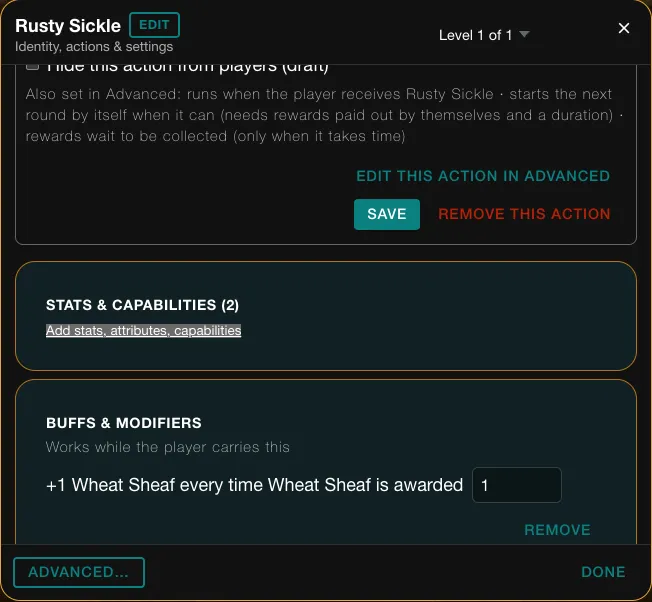
The Rusty Sickle is a unique Gear item. It carries the capability Reaping and a Health of 12. A copy of it that the player crafted, read after crafting, showed Health 12 of 12 and a tool-wear stat at 1 of 100. Each cut of the Heirloom Wheat takes 1 Health off the sickle, so it lasts 12 cuts. Wears the tool explains that rule.
Its buff is one extra Wheat Sheaf. The property window reads it back as "+1 Wheat Sheaf every time Wheat Sheaf is awarded", with the number 1 in a field you can change and a REMOVE button. The note Works while the player carries this sits above it.
Good to know
- Stats belong to the level. A row says where its value comes from, such as set on this level or from Level 1. XP never carries over from a lower level.
- Zero is not a buff. To turn a buff off, use Stop from this level.
- Buffs ignore equipping. The player only has to carry the item.
- Rules this window cannot show stay safe. They appear as read-only lines, and saving does not change them.
Under the hood
- The window cannot make an item unique. It shows a link, Make this a unique item in Advanced, that opens the full admin editor.
- The window does not see a change made in the full admin editor until you reopen it.
- A stat or capability you create here is shared by name. A new stat reuses an existing stat of the same name, ignoring capitals and spaces.
- A buff does not need the item to be unique. Buffs work only while the player carries the item. They are never tied to equipping it.
- A buff with a value of 0 is refused. Use Stop from this level to turn a buff off for a level.
- Rules the window cannot show, such as a comparison it does not know, appear as read-only lines and pass through every save unchanged. Edit them with the button Edit this action in Advanced.
- An action can be hidden as a draft. A draft does not show to players and does not run, even when something triggers it. Saving keeps it a draft. Unticking the draft box and saving is the one way to publish it.
- Some rule types are not offered for some actions because the engine does not read them there. For example a sale never checks requirements, so the window offers none on a Sell action.